Introduction
SQL
Server Always On Availability Groups provides resilience for high availability
and disaster recovery solution in a multi-node architecture. In the
article, Session timeouts in SQL Server Always On Availability Groups,
we explained the session timeout configurations to safeguard AG from soft
errors.
Suppose
you have an availability group configured for automatic failover. In this
synchronized availability group, we can have the following types of failover.
- Automatic
- Manual
- You can do forced failover with
possible data loss
In the
case of automatic failover, the availability group fails over to a synchronized
secondary replica without any data loss. However, an automatic failover
requires the satisfied conditions defined in the flexible failover policy.
The
flexible failover policy depends on the Health-check timeout threshold, Failure-Condition Level and Cluster timeouts.
It is
an important aspect to determine the auto-failover causes in a production
database environment. The logs are useful factors for monitoring and
investigating the failures.
- SQL Server error logs
- Windows cluster logs
- Cluster event logs
- SQL Server failover diagnostics (sp_server_diagnostics) logs
- AlwaysOn_Health extended events
output
- System_health extended events
- Application and system logs
Most of the unexpected failover events which we had recently
investigated could have been avoided by small changes to the cluster/AG role
properties.
In the below example, the downtime was just two seconds, but
it closed all application connections and led the running SQL agent jobs to
fail (extract from the SQL errorlog file):
- 2023-05-28 05:48:53.91
Server The state of the local availability replica in
availability group 'AG' has changed from 'PRIMARY_NORMAL' to
'RESOLVING_NORMAL'. The replica state changed because of either a
startup, a failover, a communication issue, or a cluster error.
- 2023-05-28 05:48:53.91
spid53 The state of the local availability replica in
availability group 'AG' has changed from 'RESOLVING_NORMAL' to
'PRIMARY_PENDING'. The replica state changed because of either a
startup, a failover, a communication issue, or a cluster error.
- 2023-05-28 05:48:53.91
Server The state of the local availability replica in
availability group 'AG' has changed from 'PRIMARY_PENDING' to
'PRIMARY_NORMAL'. The replica state changed because of either a
startup, a failover, a communication issue, or a cluster error.
Here, we see the classic lease timeout event (extract from the errorlog file):
2023-05-28 05:48:53.91
Server Error: 19419, Severity: 16, State: 1. Windows Server
Failover Cluster did not receive a process event signal from SQL Server hosting
availability group 'AG' within the lease timeout period.
2023-05-28 05:48:53.91
Server Error: 19407, Severity: 16, State: 1. The lease
between availability group 'AG' and the Windows Server Failover Cluster has
expired. A connectivity issue occurred between the instance of SQL Server and
the Windows Server Failover Cluster. To determine whether the availability
group is failing over correctly, check the corresponding availability group
resource in the Windows Server Failover Cluster.
And in the failover cluster logs, you may see event sequences such as those below (you can extract the cluster logs using Get-ClusterLog powershell command):
DBS
[NETFTEVM] FTI NetFT event handler got event: LocalEndpoint 10.0.1.10:~3343~ has
missed two-fifth consecutive heartbeats from 10.0.1.11:~3343~
DBS
[NETFTEVM] FTI NetFT event handler got event: LocalEndpoint 192.168.1.10:~3343~
has missed two-fifth consecutive heartbeats from 192.168.1.11:~3343~
or
ERR [RES] SQL
Server Availability Group: [hadrag] Failure detected, diagnostics heartbeat
is lost
ERR [RES] SQL Server Availability Group <AG>: [hadrag] Availability Group is not healthy with given HealthCheckTimeout and FailureConditionLevel WARN [RHS] Resource AG IsAlive has indicated failure.
INFO
[RCM] rcm::RcmGroup::UpdateStateIfChanged: (AG, Online --> Pending)
Always On health detection relies on a few
mechanisms:
- Resource
DLL (RHS), which determines the IsAlive value at the cluster
heartbeat interval, and is controlled by CrossSubnetDelay and
SameSubnetDelay cluster properties
- sp_server_diagnostics, which
reports the component health on an interval controlled by the
HealthCheckTimeout property
- Lease
mechanism, which is used as a Looks-Alive between the cluster
resource host and the SQL processes
- Session
Timeout, which detected the “soft”
errors / small timeouts or insufficient resources
- This
also affects the automatic seeding timeout
The mechanisms above are controlled by properties that can be adjusted at the cluster level and/or the AG level:

Getting cluster properties values
To view the current cluster values, open an elevated
Powershell terminal and run the following:
#display current cluster properties
Get-Cluster | fl
CrossSubnetDelay, CrossSubnetThreshold, SameSubnetDelay , SameSubnetThreshold
#display current AG role properties
Get-ClusterResource
<yourAG>| Get-ClusterParameter HealthCheckTimeout, LeaseTimeout


To view the current AG role properties, execute the below
SQL statement in SSMS or any SQL IDE:
select ag.name, arcn.replica_server_name, arcn.node_name, ars.role, ars.role_desc, ars.connected_state_desc, ars.synchronization_health_desc, ar.availability_mode_desc, ag.failure_condition_level,ar.failover_mode_desc, ar.session_timeout
from sys.availability_replicas ar with (nolock)
inner join sys.dm_hadr_availability_replica_states ars with (nolock) on ars.replica_id=ar.replica_id and ars.group_id=ar.group_id
inner join sys.availability_groups ag with (nolock) on ag.group_id=ar.group_id
inner join sys.dm_hadr_availability_replica_cluster_nodes arcn with (nolock) on arcn.group_name=ag.name and arcn.replica_server_name=ar.replica_server_name

Making the cluster / AG more resilient
The default/maximum network downtime that AG can absorb
without being impacted is 10 seconds (1/2 of LeaseTimeout and 1/3 of
HealthCheckTimeout).
In order to make the cluster/AG roles more resilient and able to absorb more network downtime without a failover, you can increase the cluster and AG properties, taking into account the relationship between the properties’ values:
For example, to increase the supported network downtime from
10 to 20 seconds:
- LeaseTimeout
– change from 20000 to 40000 (40 seconds)
- HealthCheckTimeout
– change from 30000 to 60000 (60 seconds)
- SameSubnetThreshold
– change from 10 to 20
- Session
Timeout – change from 10 to 20 seconds
You may use the below Powershell script to change the cluster level properties:
|
$crossSubnetDelayOptimal = 1000; $crossSubnetThresholdOptimal = 20 $sameSubnetDelayOptimal = 1000 $sameSubnetThresholdOptimal = 20 $healthCheckTimeoutOptimal = 60000 $leaseTimeoutOptimal = 40000 Write-Host "Check cluster
heartbeat timeouts" $cluster = get-cluster $crossSubnetDelay =
$cluster.CrossSubnetDelay $crossSubnetThreshold =
$cluster.CrossSubnetThreshold $sameSubnetDelay =
$cluster.SameSubnetDelay $sameSubnetThreshold =
$cluster.SameSubnetThreshold if($crossSubnetDelay -ne
$crossSubnetDelayOptimal) { Write-Host
"Cluster option CrossSubnetDelay changed from $crossSubnetDelay to
$crossSubnetDelayOptimal" $cluster.CrossSubnetDelay
= $crossSubnetDelayOptimal } if($crossSubnetThreshold -ne
$crossSubnetThresholdOptimal) { Write-Host
"Cluster option CrossSubnetThreshold changed from $crossSubnetThreshold
to $crossSubnetThresholdOptimal" $cluster.CrossSubnetThreshold
= $crossSubnetThresholdOptimal } if($sameSubnetDelay -ne
$sameSubnetDelayOptimal) { Write-Host
"Cluster option SameSubnetDelay changed from $sameSubnetDelay to
$sameSubnetDelayOptimal" $cluster.SameSubnetDelay
= $sameSubnetDelayOptimal } if($sameSubnetThreshold -ne
$sameSubnetThresholdOptimal) { Write-Host
"Cluster option SameSubnetThreshold changed from $sameSubnetThreshold to
$sameSubnetThresholdOptimal" $cluster.SameSubnetThreshold
= $sameSubnetThresholdOptimal } Write-Host "Check cluster
resource properties" $resources = Get-ClusterResource ForEach($resource in $resources) { if($resource.ResourceType
-eq "SQL Server Availability Group") { $name
= $resource.Name $healthCheckTimeout
= (Get-ClusterParameter -Name HealthCheckTimeout -InputObject
$resource).Value $leaseTimeout
= (Get-ClusterParameter -Name LeaseTimeout -InputObject $resource).Value if($healthCheckTimeout
-ne $healthCheckTimeoutOptimal) { Write-Host
"$name - HealthCheckTimeout - Changed from $healthCheckTimeout to
$healthCheckTimeoutOptimal" Set-ClusterParameter
-Name HealthCheckTimeout -InputObject $resource -Value
$healthCheckTimeoutOptimal } if($leaseTimeout
-ne $leaseTimeoutOptimal) { Write-Host
"$name - LeaseTimeout - Changed from $leaseTimeout to
$leaseTimeoutOptimal" Set-ClusterParameter
-Name LeaseTimeout -InputObject $resource -Value $leaseTimeoutOptimal } } }
|
To change the Session Timeout value, connect to the SQL instance and execute the below statement on all the AG replicas:
ALTER AVAILABILITY GROUP <AG name> MODIFY REPLICA
ON '<replica name>' WITH (SESSION_TIMEOUT = 20);
Microsoft guidelines
Microsoft compiled guidelines for timeout values, their root causes and outcomes.

Special note on Resource Monitor (RHS)


If lease timeout occurs ( >20 seconds), the rhs.exe reports
an error in the Windows cluster, and it starts taking preventive action.
You can get the following error messages for a least timeout
issues:
select message_id,text from sys.messages
where message_id in(19407,19419,19421,19422) and
language_id=1033

SQL Server Always On Availability Groups Health Check timeout

SQL Server Always On Availability Group performs a health
check of the primary replica using the sp_server_diagnostics stored
procedure. The sp_server_diagnostics executes every 10
seconds. The health check timeout is 30 seconds.
Therefore, the stored procedure returns the result on 1/3 *
health checks current threshold. If the SP does not return any results, AG
refers to the previous state for determining the instance health until the
health-check timeout threshold. The next Is-Alive determines that the primary
replica is unresponsive, and it initiates the automatic failover.
Note:
- The sp_server_diagnostics does
not perform health checks at the database level
- It
does not consider DB level health detection until we explicitly enabled
it. Refer to the article, Database-level
health detection in SQL Server Always On Availability Groups for
more details
Recap of LeaseTimeout, Session-Timeout and Health check timeouts
Lease timeout:
- Default
value: 20000 milliseconds, i.e. 20 seconds
- It is
required to prevent a split-brain scenario in the Windows failover cluster
- It can
trigger an AG failover or offline-online
- It is
used in both Is-Alive and the Looks-alive mechanism
Session Timeout:
- It is
used to safeguard against soft errors between AG replicas
- default
value: 10000 milliseconds or 10 seconds
- It is
not part of the Is-Alive or the Looks-alive mechanism
- Secondary
replica becomes DISCONNECTED status due to session timeout
- You
can configure the session timeouts in the availability group properties
from the primary replica instance
Health Check timeout
- Default
value: 30000 milliseconds, i.e. 30 seconds
- It is
the timeout if the sp_server_diagnostics does not return
any data or reports errors in the health check
- It is
used in both Is-Alive and the Looks-alive mechanism
- It
also depends on the failover condition levels defined from 1-5, as
explained earlier. The default configuration is level 3
Server Level Health Detection:

SELECT wait_time, *
FROM sys.dm_exec_requests WHERE last_wait_type = 'SP_SEREVR_DIAGNOSTICS_SLEEP'
and command = 'execute'
GO
DBCC INPUTBUFFER()
EXEC sp_server_diagnostics 10
Create the following [AGSessionTimeOut] table on primary
replica in availability group database [MyNewDB]. Next, we use a while loop to
insert the records into the [AGSessionTimeOut] table and wait for 1 second
(using the WAITFOR DELAY command) before inserting the next record.
Create table MyNewDB.dbo.AGSessionTimeOut
(
ID int IDENTITY(1,1),
RecordTimestamp datetime
)
WHILE 1=1
BEGIN
INSERT INTO MyNewDB.dbo.AGSessionTimeOut(RecordTimestamp)
VALUES (GETDATE())
WAITFOR DELAY '00:00:01'
END
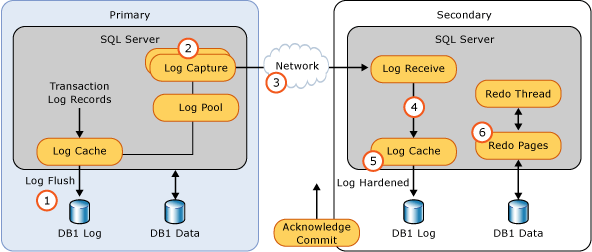
We have a synchronous AG secondary replica, so it waits for transaction acknowledgement and commits records on the primary replica. After some time, stop the secondary replica SQL instance. It causes connection timeouts for the secondary replica. Now, stop insert the statement on the primary replica after 20-30 seconds.
To troubleshoot the connection timeout, check the SQL Server
error log on the primary replica. In the below image, we see that it recorded a
connection timeout error at 2020=11-24 11:34:13 AM.
exec xp_readerrorlog 0,1,N'Connection timeout'

In
this article, we figured SQL Server Always On Availability Groups flexible
failover policy using the lease, health check timeout and Failover Condition
Levels. You should review the logs to determine the scenarios where the
automatic failover occurred or failed.
Special Thanks to Dan-Andrei Stefan who made very informatic blog on this....